Congratulations. You have now published your courses and added your students to the system.
The next step: how to manage your tutoring sessions and your student performance based on the proven ‘Growth Goal Setting Process’.
If you are not familiar with ‘Growth Goal Setting’ or its best practices, we highly recommend reviewing our blog: “The Imperative of Growth Goal Setting and its Effective Implementation” and the “Growth goal setting – what works best in practice” article promoted on the NSW Department of Education.
Each of the ‘seven’ tabs shows how to configure L-earn.io accordingly.
My Students
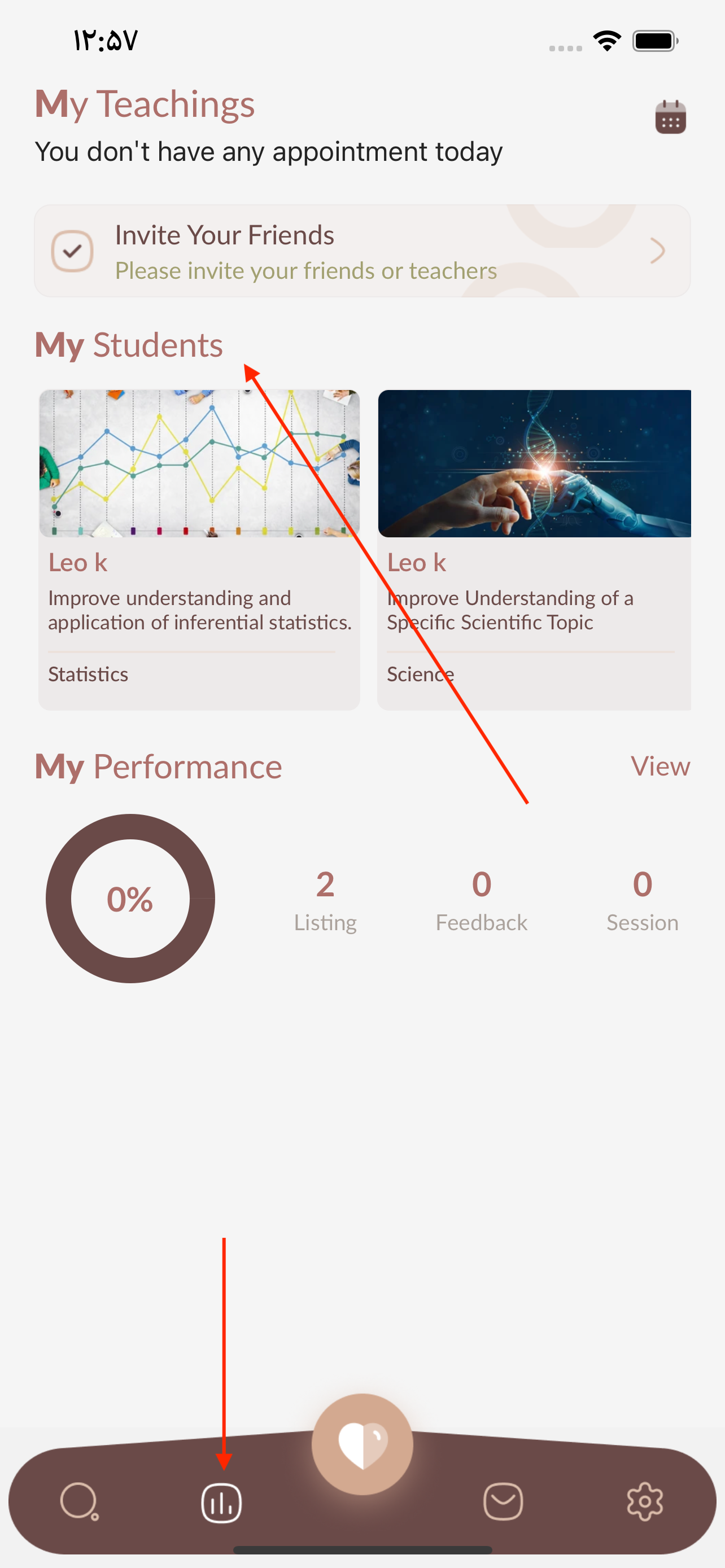
– Tap My Teachings in bottom menu
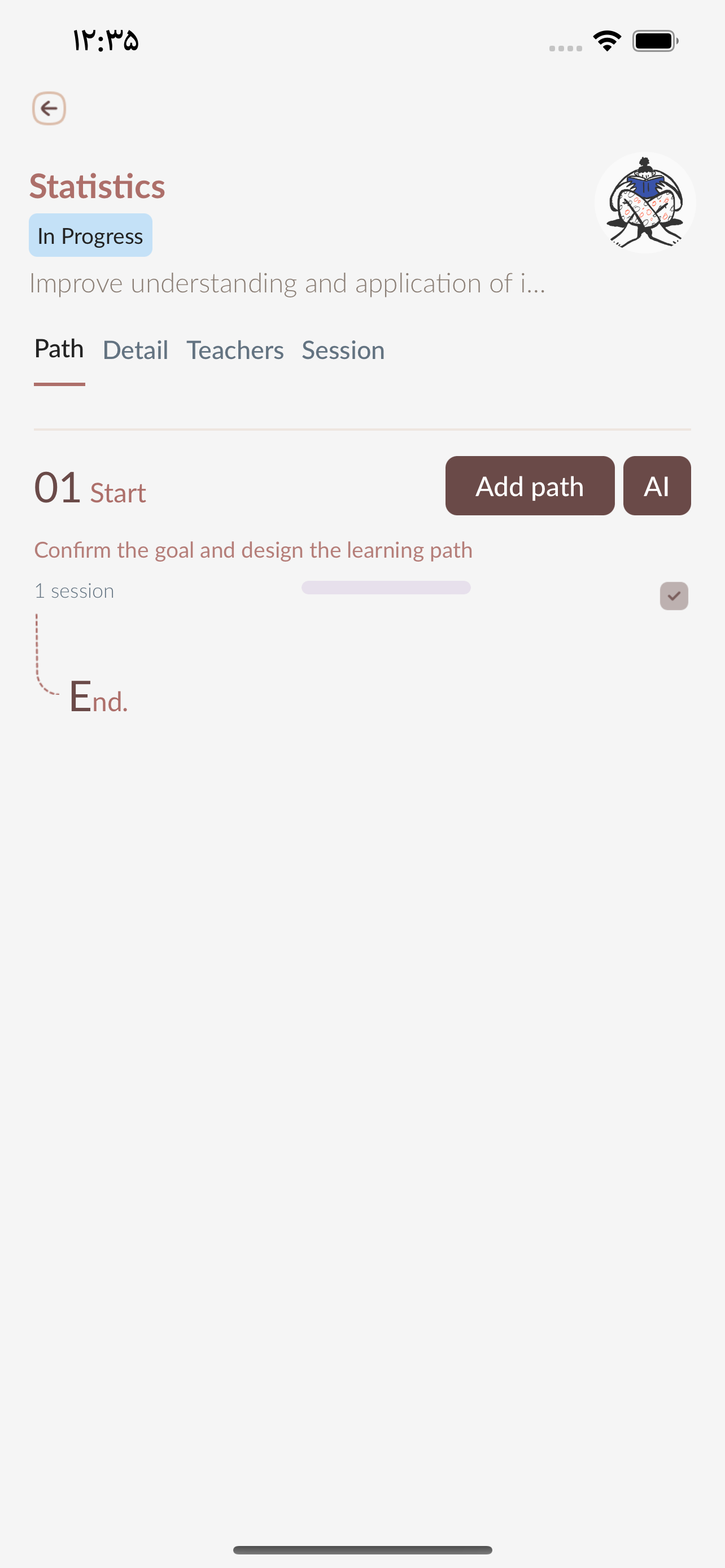
– Tap a goal in My Students section. This is the goal your student has chosen. In your first session, you should discuss and refine this goal with your student and preferably, the parent.
Remember the characteristics of effective goals: self-improvement (Martin, 2006), specific, challenging (Locke and Latham 2002; 2013), positive, time-bound and measurable.


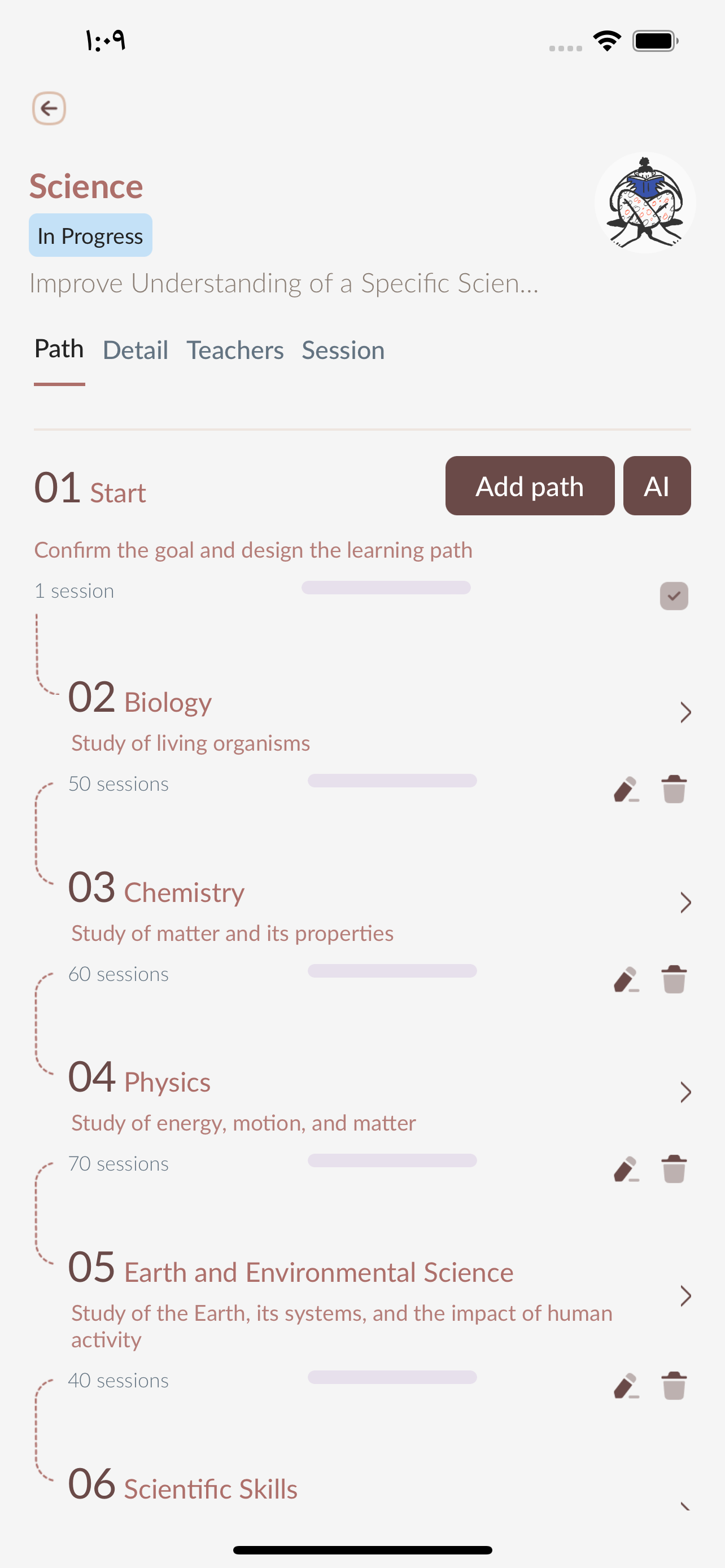
Learning Path
– Tap My Teachings in bottom menu
– Tap a goal in My Students section
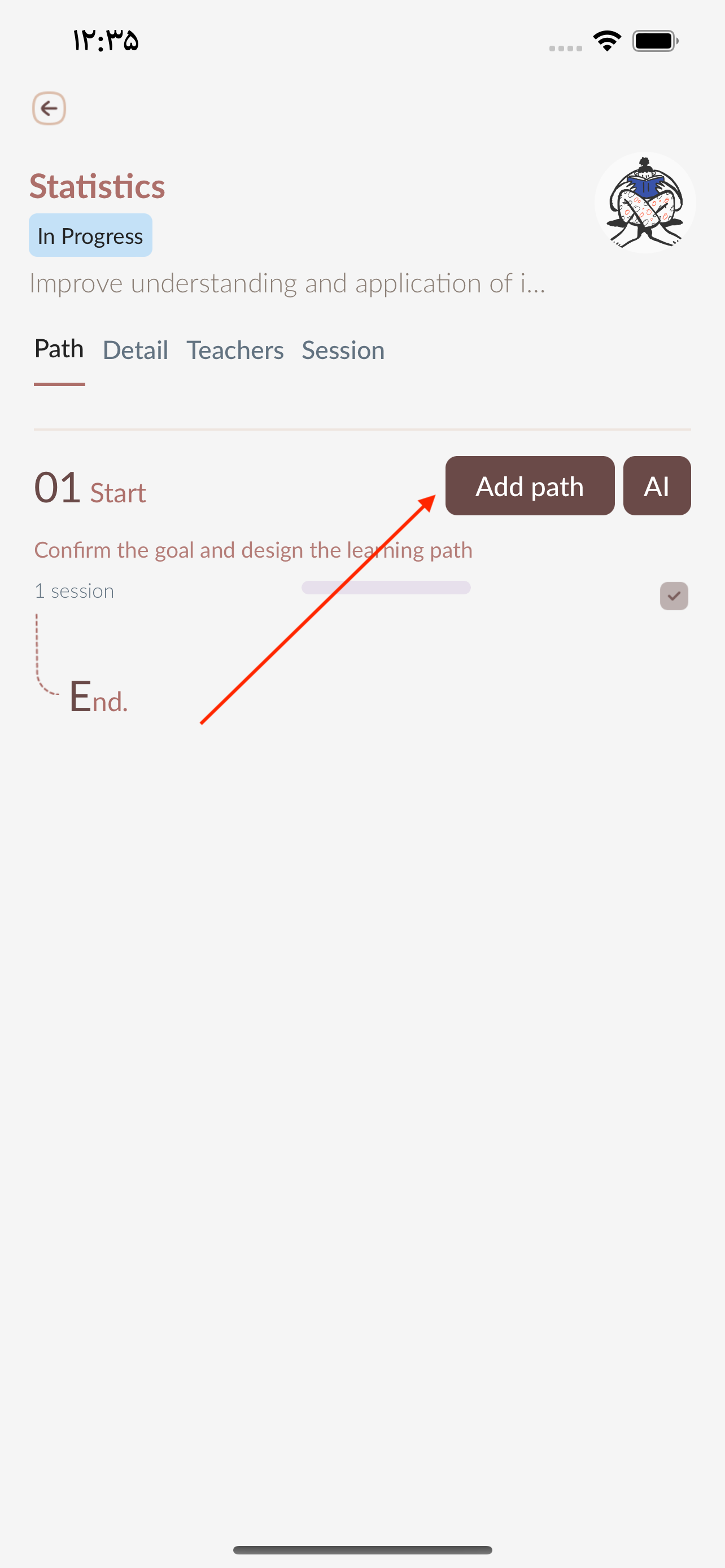
– Tap Add path button
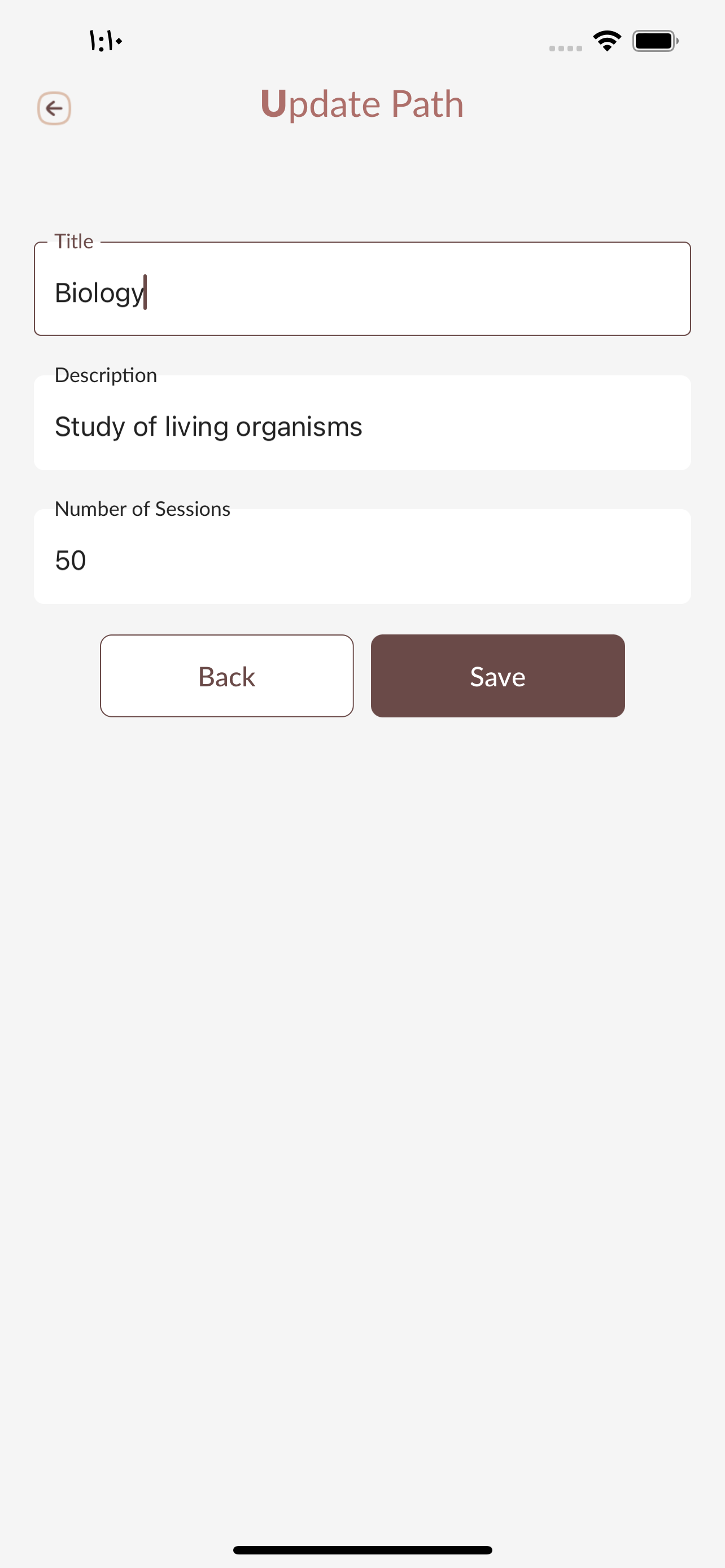
– Enter Title, Description and Sessions
– Tap Save button


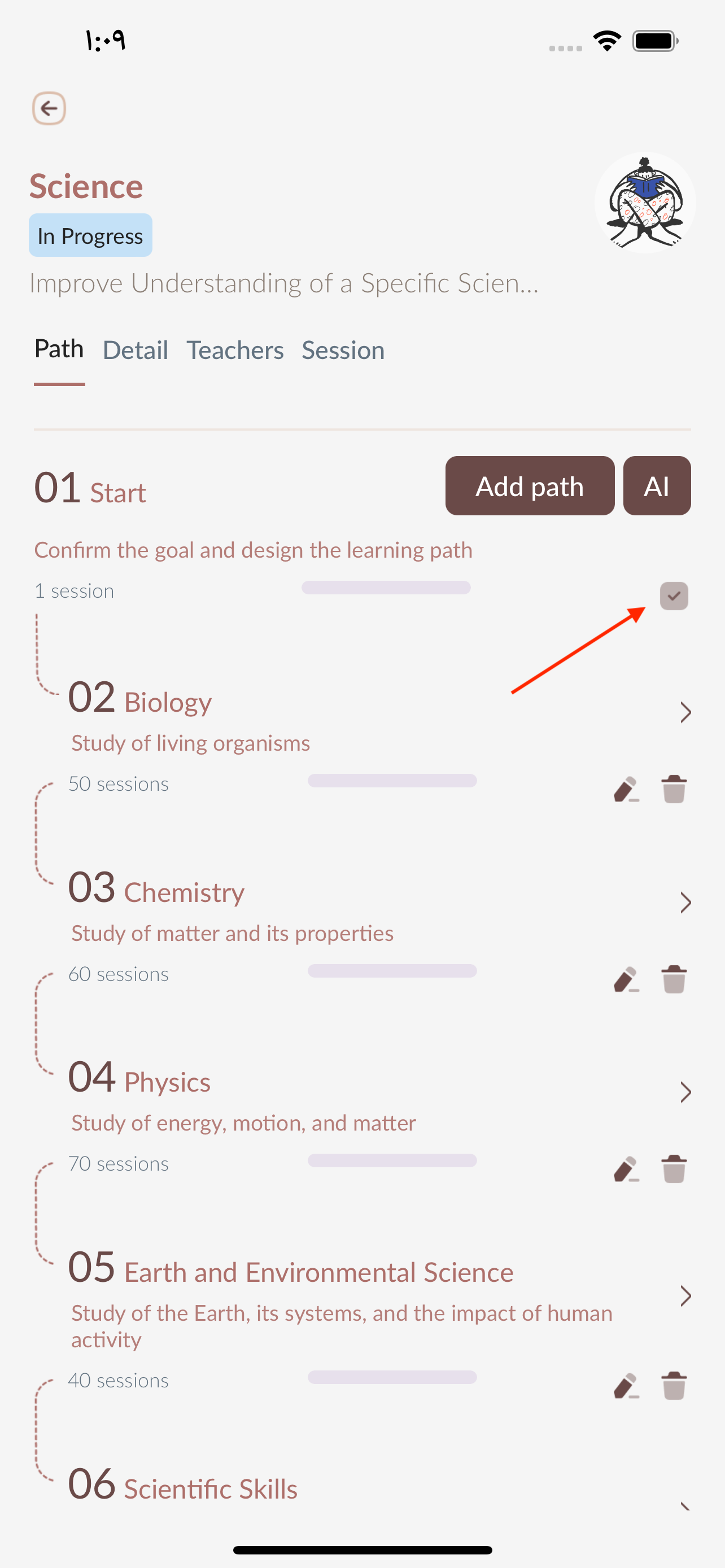
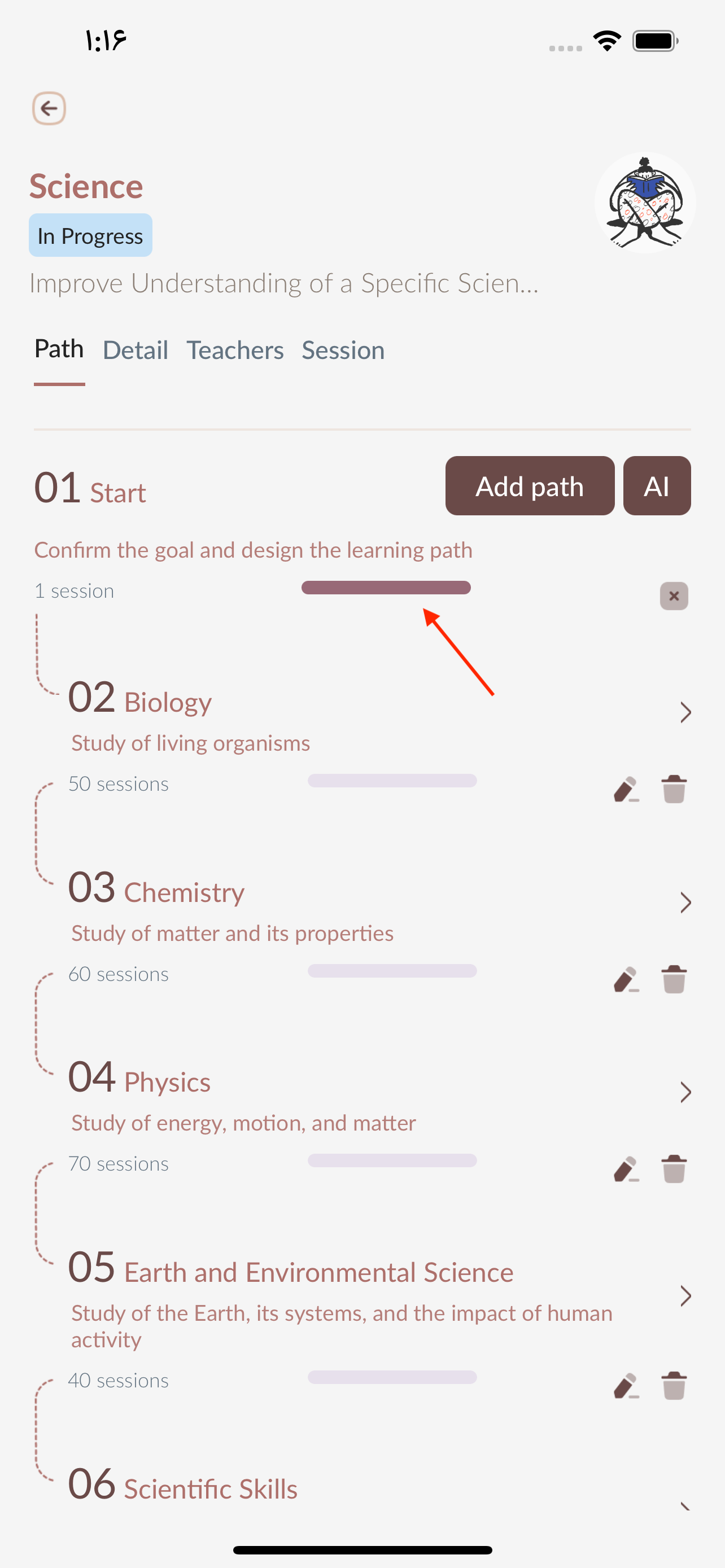
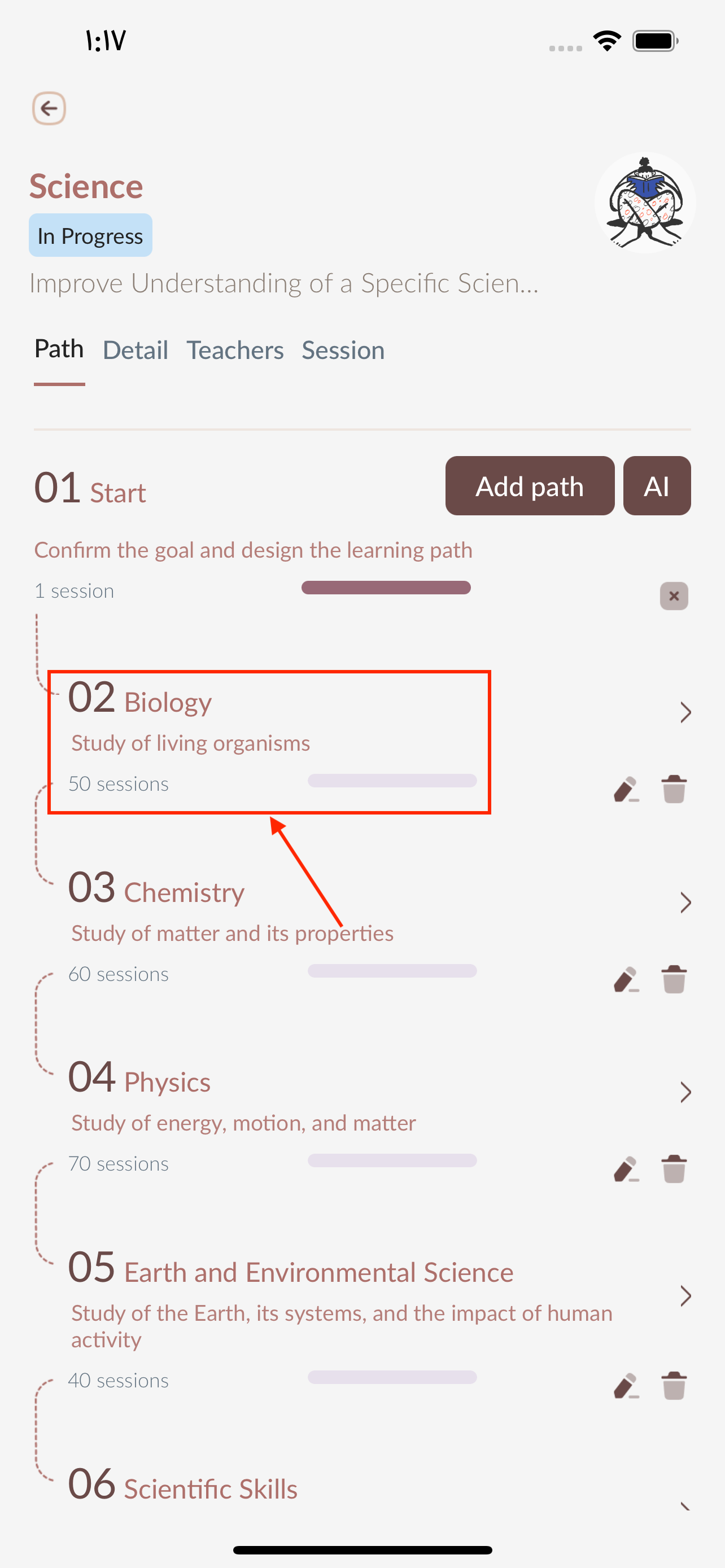
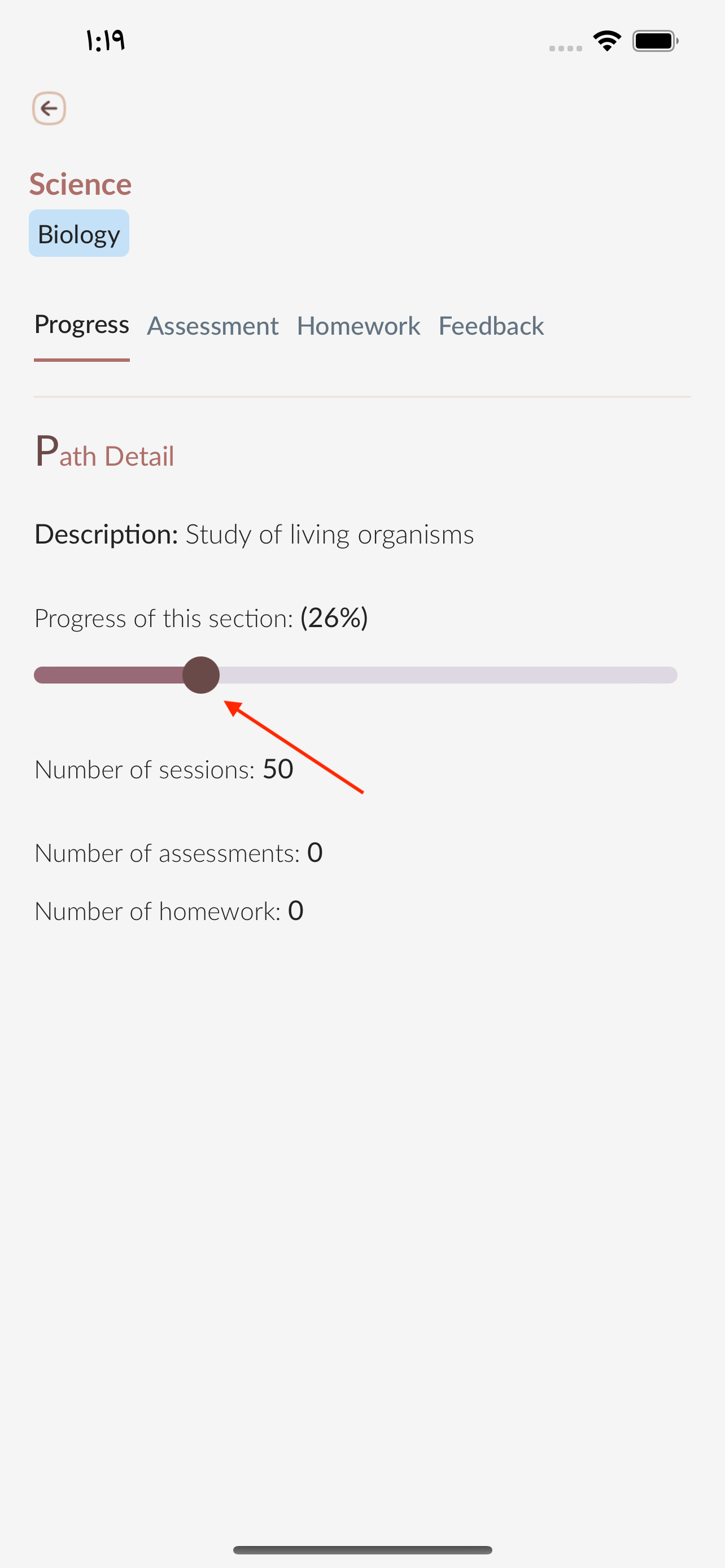
Learning Path Progress
– Tap My Teachings in bottom menu
– Tap a goal in My Students section
– Tap checkbox in first session to complete first session or reset it

– Select a section to change the progress of it
– Drag scroll of progress to change it


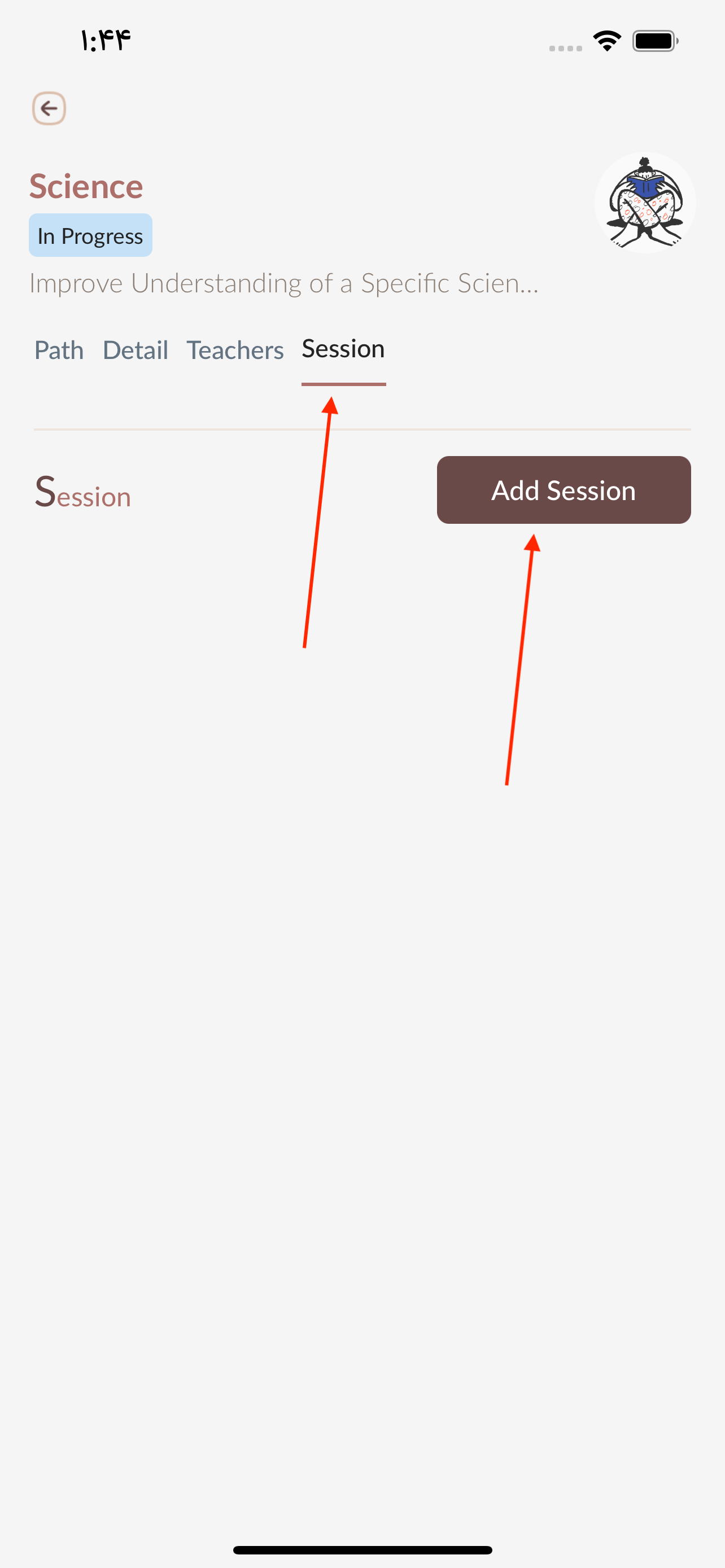
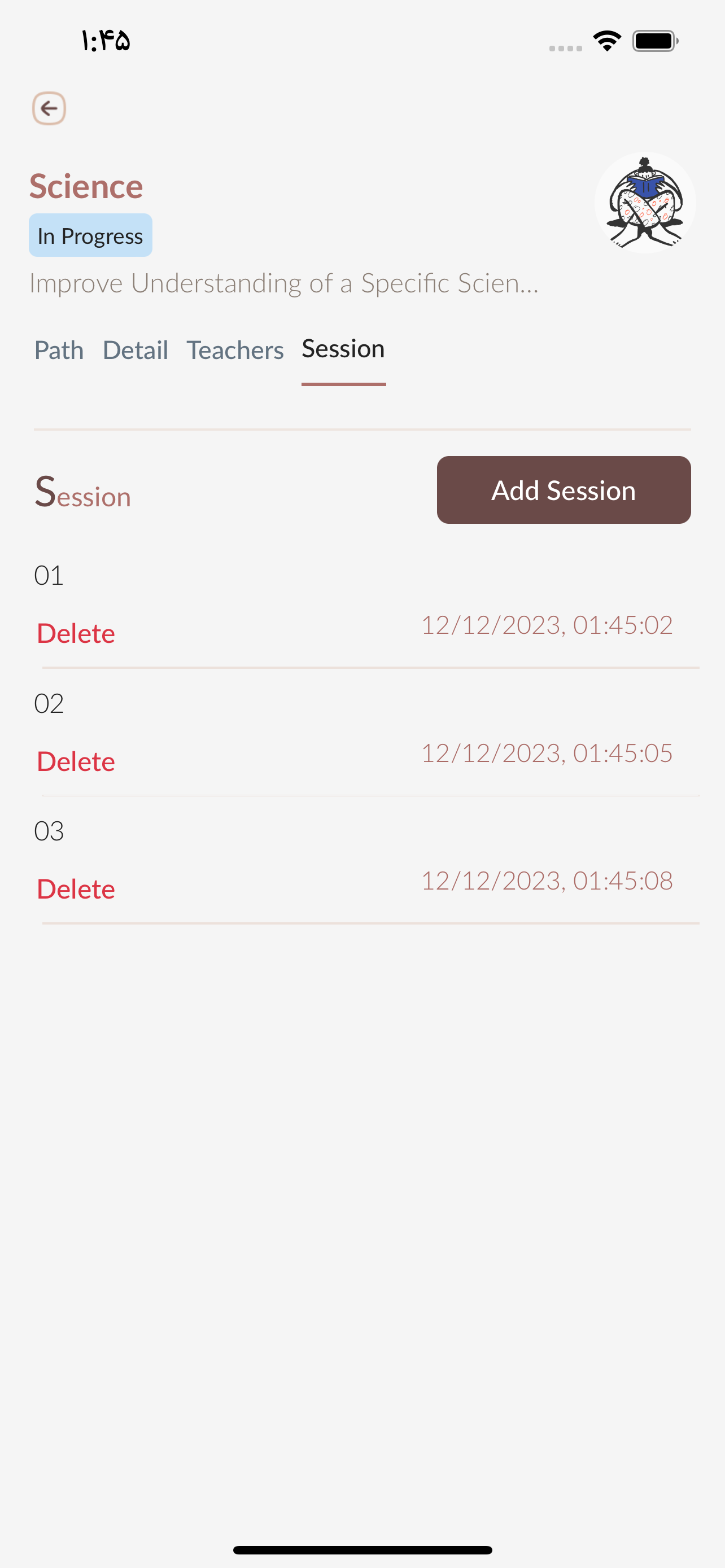
Sessions
– Tap My Teachings in bottom menu
– Tap a goal in My Students section
– Select Session in tab bar
– Tab Add Session button


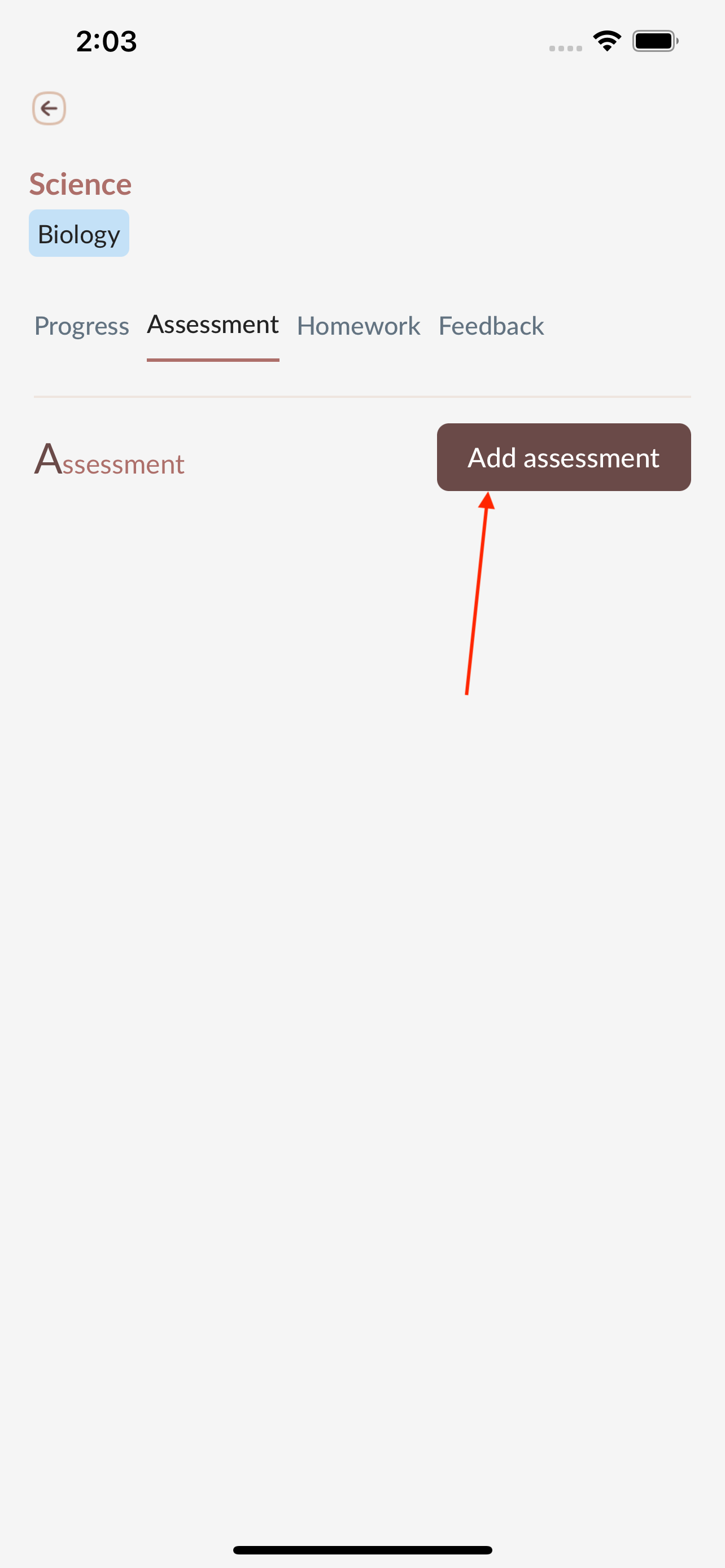
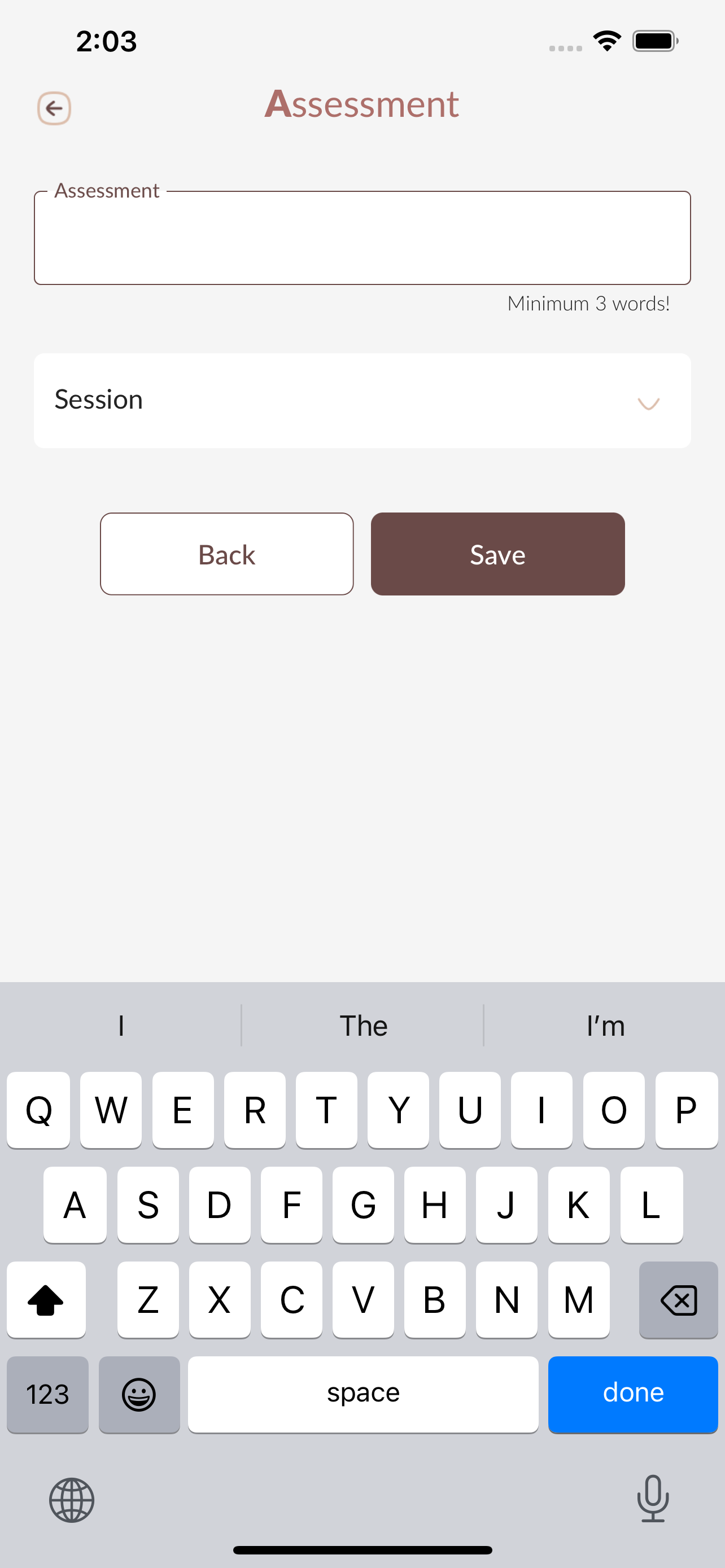
Assessment
– Tap My Teachings in bottom menu
– Tap a goal in My Students section
– Select a section to change the progress of it
– Select Assessment in tab bar
– Tap Add assessment button


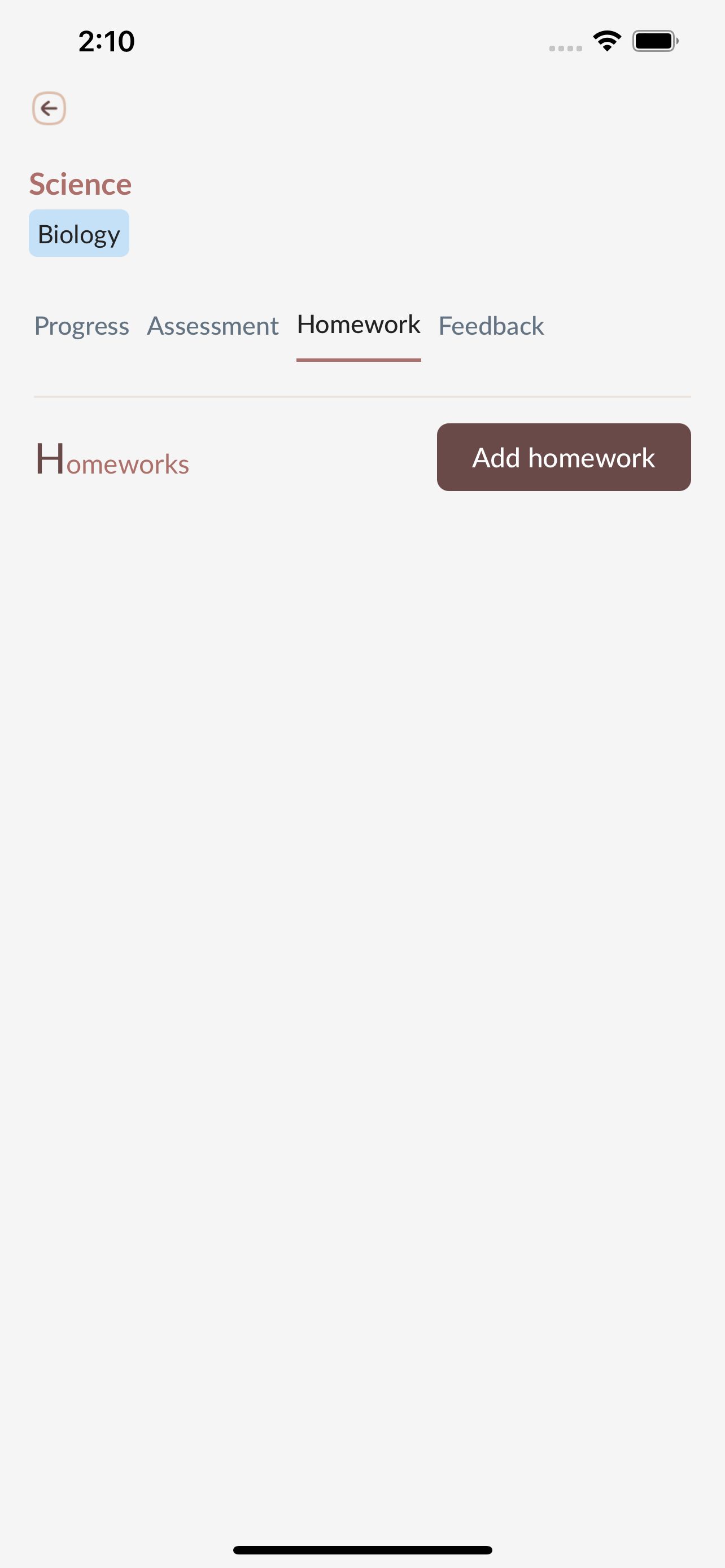
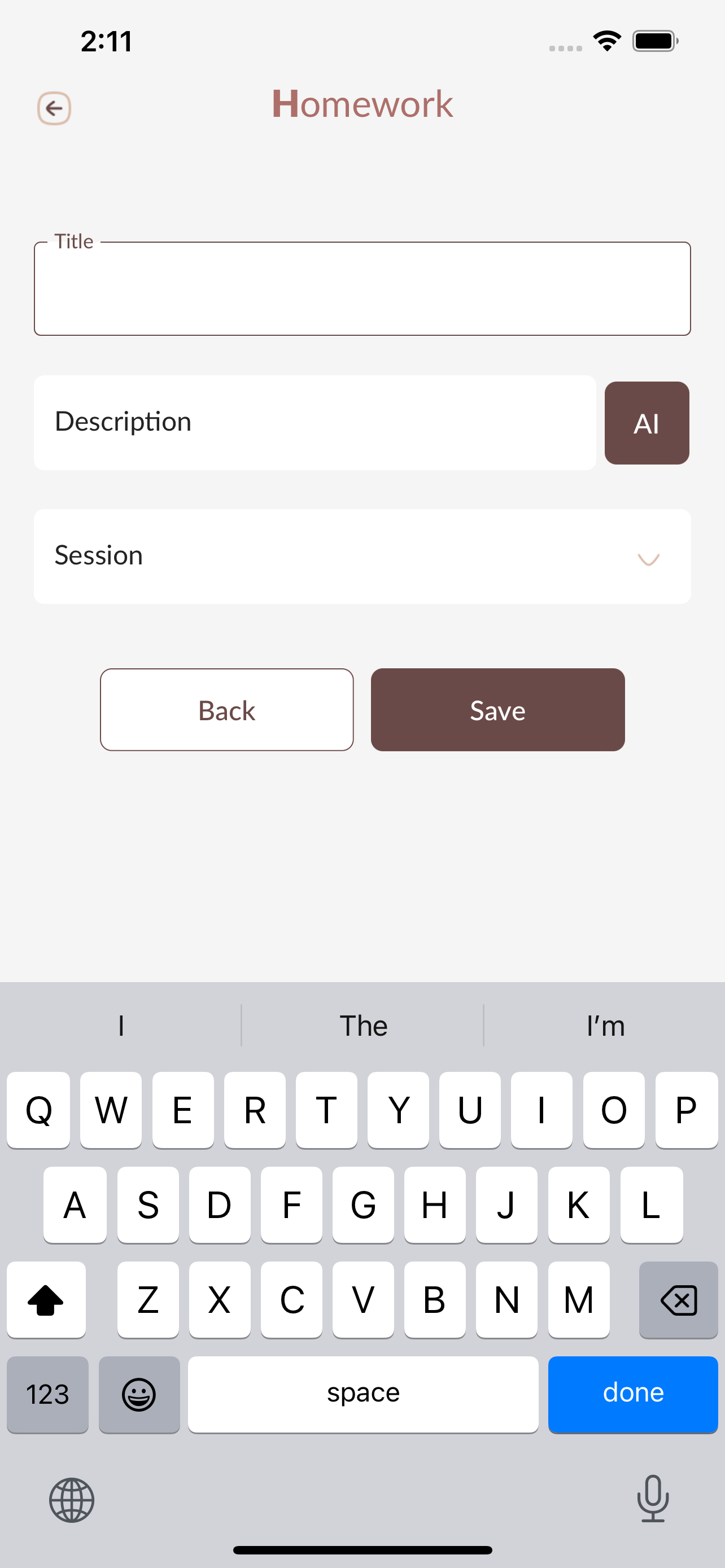
Homework
– Tap My Teachings in bottom menu
– Tap a goal in My Students section
– Select a section to change the progress of it
– Select Homework in tab bar
– Tap Add homework button


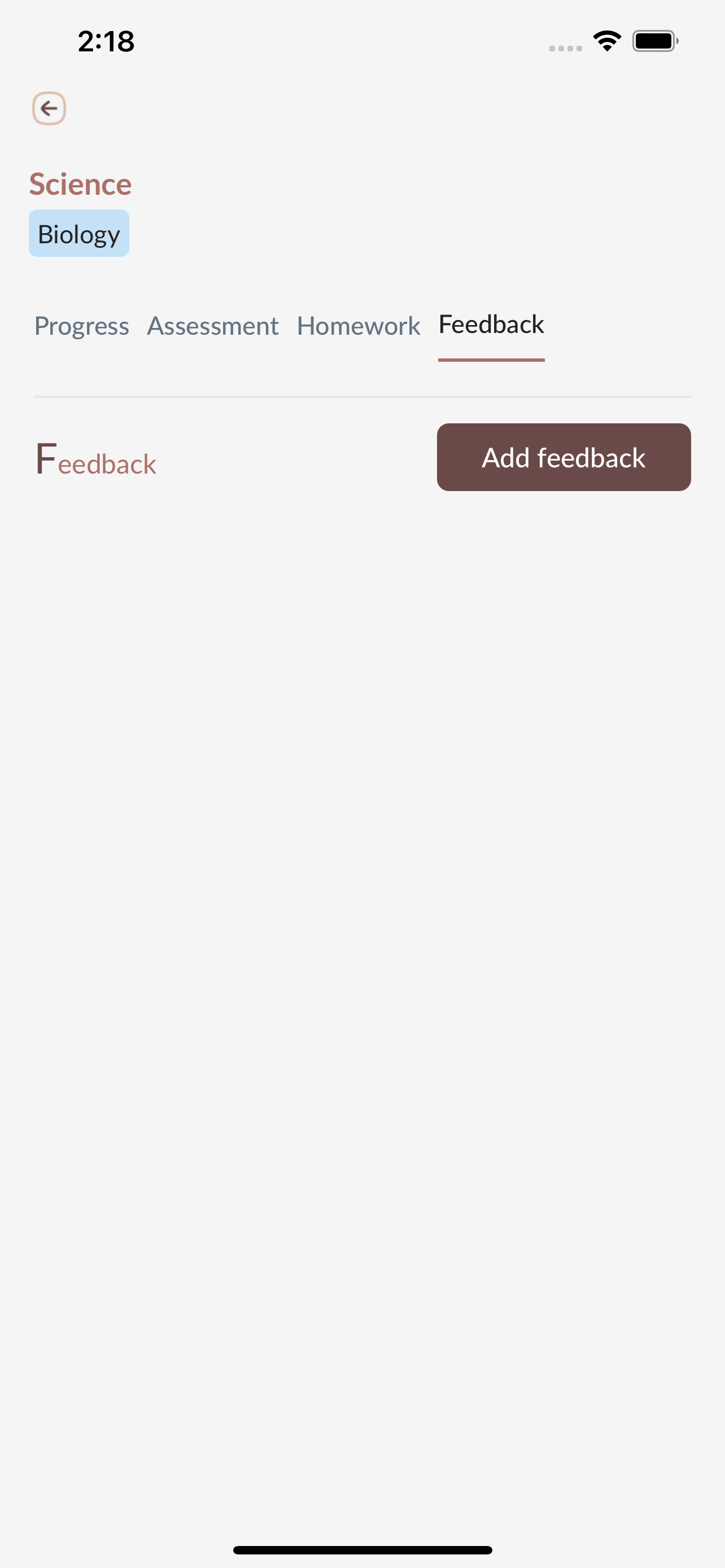
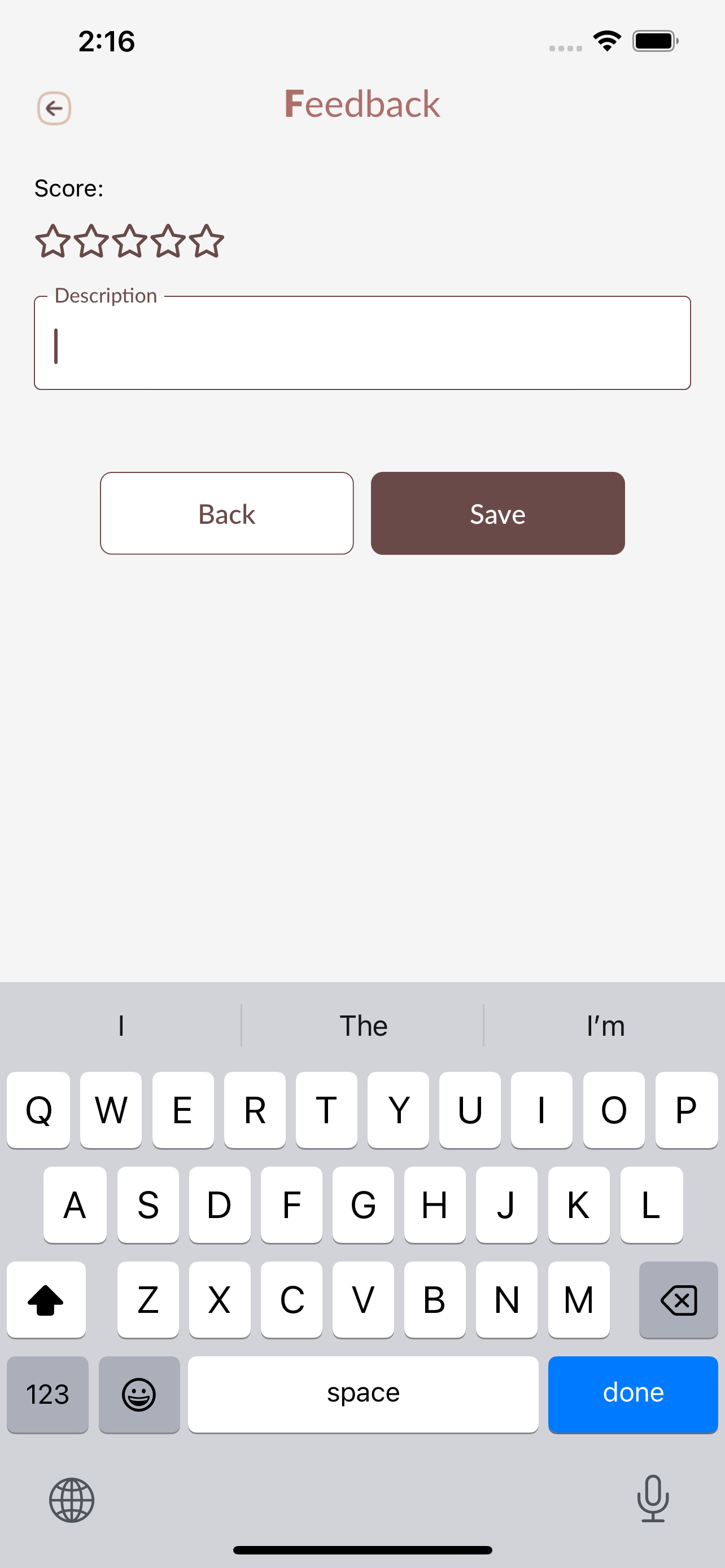
Feedback
– Tap My Teachings in bottom menu
– Tap a goal in My Students section
– Select a section to change the progress of it
– Select Feedback in tab bar
– Tap Add feedback button